User Guide
Tutorials on adding a Scoreboard to OBS — the same TXT/image file sources work the same way in Streamlabs, Wirecast and Meld.
- FAQ
- Getting Started
- Output text and image files
- How to add a timer/counter in OBS
- How to add a Scorebug Background
- How to correctly display Tenths
- How to add Team Rosters
FAQ
How do I add a live sports scoreboard to OBS on Mac?
Install ScoreBoard for Mac, then add its output TXT files as Text (FreeType 2) sources and its promo/logo images as Image sources in OBS — see Getting Started below.
Why doesn’t my OBS text source update instantly?
By default OBS re-reads text files about once per second. For faster or sub-second updates (e.g. tenths of a second on a timer), use the Advanced Scene Switcher plugin — see How to display tenths of a second.
Can I show team rosters or a lineup overlay in my stream?
Yes — add the roster as text in a team’s Status field and/or as an image via the promo buttons, then show it with Text and Image sources in OBS — see How to show team rosters.
Does this work in Streamlabs, Wirecast or Meld instead of OBS?
Yes. ScoreBoard outputs plain TXT and image files, which any streaming software with text-file or image-file sources can read the same way OBS does.
Do I need a scorebug background image, or can I use text sources alone?
Either works. Text sources alone show live values; adding a background/scorebug image behind them (see How to add a Scorebug Background) gives it a designed look.
Getting Started
Scoreboard for OBS on macOS is a user-friendly app designed for sports enthusiasts, broadcasters, and streamers who want to display live score updates in their OBS Studio scenes for two teams/players. This lightweight application simplifies the process of managing and integrating a scoreboard, allowing you to focus on the game and your audience.
Enhance your sports broadcasts with Scoreboard for OBS on macOS — simple, effective, and designed for live streaming!
Ideal Use Cases
- Sports events (football, basketball, volleyball, etc.)
- eSports and gaming tournaments
- Live commentary and analysis streams
Features
- Live Score Updates: Easily update scores in real-time during a game or match.
- Text File Integration: Automatically generates and updates a
.txtfile with the scoreboard information, making it compatible with OBS Studio’s Text (FreeType 2) source. - Minimal Resource Usage: The app is optimized for macOS, ensuring smooth performance even on resource-constrained systems.
- Intuitive Interface: Simple and clean interface for managing teams, scores, and other match details.
- Customizable Layout: Tailor the scoreboard’s appearance to match your stream’s style, including font size, color, and positioning. This can be done in a streamer program, for example in OBS.
How It Works
- Set Up the App
- Install the Scoreboard for Mac on your computer:
- Buy in Mac App Store
- Download the free version and unzip it — notarized by Apple and safe to use
- Open the app and configure your teams/players names, and other initial settings.
- Install the Scoreboard for Mac on your computer:
- Update Scores in Real-Time
- Adjust team scores using the app’s user-friendly controls.
- The app automatically saves the updated scores to a
.txtfiles. Default directoryDownloads - ScoreBoard Outputs
- Integrate with OBS Studio
- In OBS, create a new Text (FreeType 2) source or drag and drop the desired text file into OBS.
- Enable the “Read from File” option and select the
.txtfile generated by the app. - Customize the created text source in OBS: position, size, font, color, etc.
- Stream or Record
- As you update scores in the Scoreboard app, the changes are reflected in OBS in real-time. OBS will automatically read the files from the disk (approximately once per second) and display the result.
Output text and image files
By default ScoreBoard writes these files to Downloads/ScoreBoard Outputs (choose a different output directory in Preferences). Each .txt file updates live as you control the game and is meant to be added as a Text (FreeType 2) source in OBS; each .png file is meant to be added as an Image source — see Getting Started above.
Text files
| File | Content | Example |
|---|---|---|
Timer.txt |
Main game timer/stopwatch | 12:45 |
Timer_Extra.txt |
Extra timer with two presets (e.g. a shot clock) | 14 |
Home_Name.txt / Away_Name.txt |
Team names | Eagles |
Match_Name.txt |
Match/event name | Semifinal |
Period.txt |
Current period/quarter/half (also OT, 2OT, 3OT…) | 2nd |
Home_Goal.txt / Away_Goal.txt |
Main score (goals/points) for each team | 3 |
Home_Shots.txt / Away_Shots.txt |
Extra shots counter for each team | 18 |
Home_Points.txt / Away_Points.txt |
Extra points counter for each team | 2 |
Home_Status.txt / Away_Status.txt |
Team description/status text — also used for team rosters | #9 J. Smith |
Match_Status.txt |
Match description/status text | Final |
Home_Penalties_Numbers.txt / Away_Penalties_Numbers.txt |
Player numbers currently serving penalties, one per line | 12 |
Home_Penalties_Timers.txt / Away_Penalties_Timers.txt |
Time remaining on each active penalty, one per line | 1:32 |
NHL_Penalties_Title.txt |
Power-play situation label for the shortest active penalty | 5 ON 4 |
NHL_Penalties_Time.txt |
Time remaining on the shortest active penalty | 1:32 |
Image files
| File | Content |
|---|---|
Home_Logo.png / Away_Logo.png / Match_Logo.png |
Team/match logo |
Home_Promo.png / Away_Promo.png / Match_Promo.png |
Promo graphic, e.g. a team roster image |
Home_Penalty_Card.png / Away_Penalty_Card.png |
Yellow/red penalty card graphic |
Not every file matters for every sport — shots and points are independent counters you can rename to fit your sport, and the two NHL penalty files only update while a penalty is active.
How to add a text timer or counter in OBS
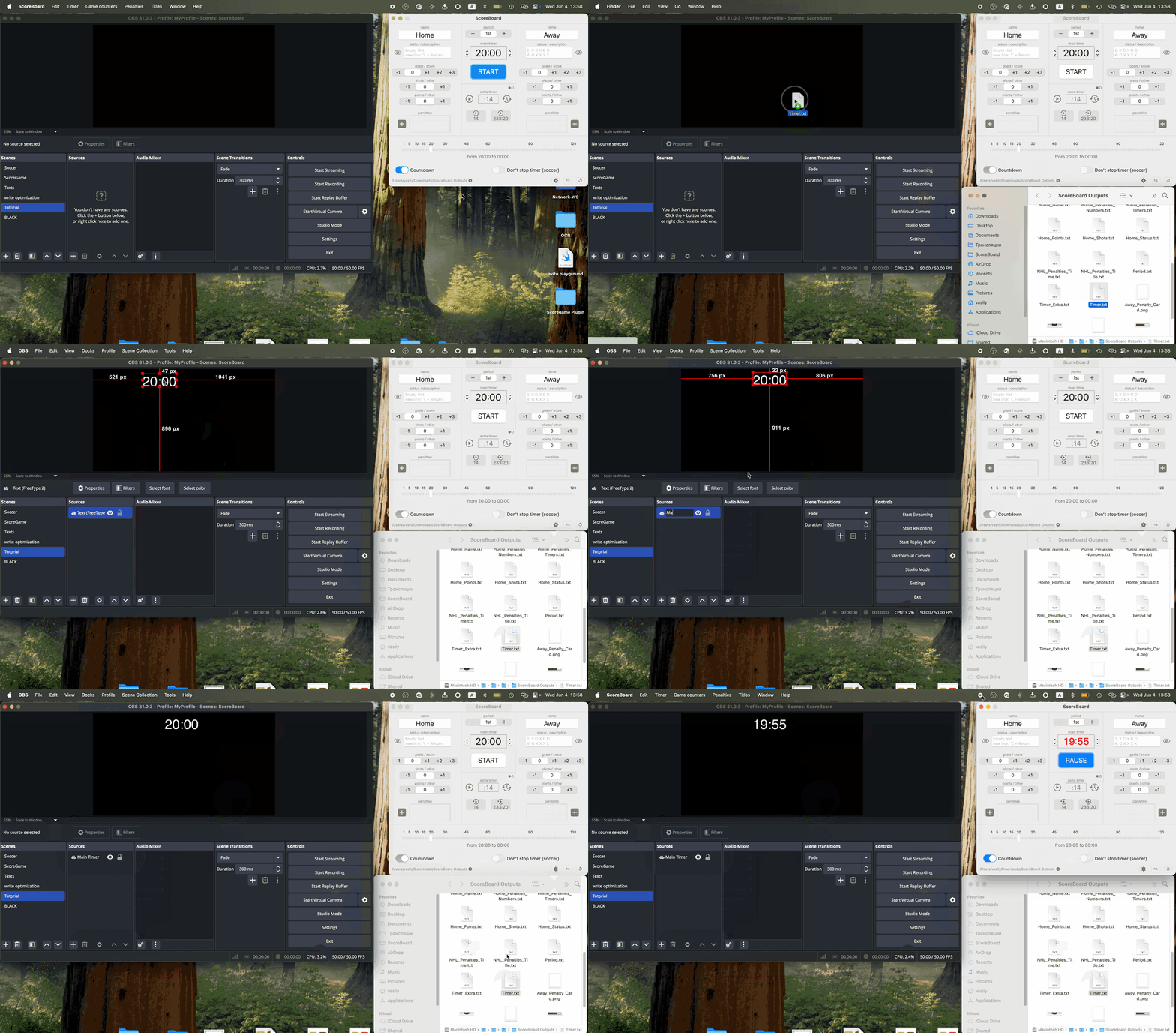
1. Open OBS Studio
Launch OBS Studio on your computer.
2. Create a New Scene (Optional)
If you want to organize your setup, create a new scene:
- Click the + button in the Scenes section.
- Give your scene a name and save it.
3. Add a Text Source
- In the Sources section, click the + button.
- Select Text (FreeType 2) from the list.
Or simply drag the desired text file from Finder into the OBS window.
4. Name Your Text Source
- Enter a descriptive name for the source (e.g.,
Main Timer). - Click OK to create the source.
5. Enable Reading from File
- In the text source properties window, check the box labeled Read from File.
- This will allow the text to be dynamically updated from a TXT file.
6. Select Your TXT File
- Click the Browse button next to the file path field.
- Navigate to your local TXT file, select it, and click Open.
7. Place the Text on the Canvas
- Drag the text box in the preview area to position it on your scene.
- Resize it as necessary.
8. Customize Appearance
- Use the Font, Size, and Color options to adjust the text style.
- Experiment with alignment, gradient, and background settings to fit your layout.
9. Test File Updates
- Change the value of the counter in ScoreBoard, for example, start a timer.
- Verify that the changes appear in OBS in real-time.
Similarly, add and configure all the timers/counters needed for the sport scoreboard stream.
How to add a Scorebug background image in OBS
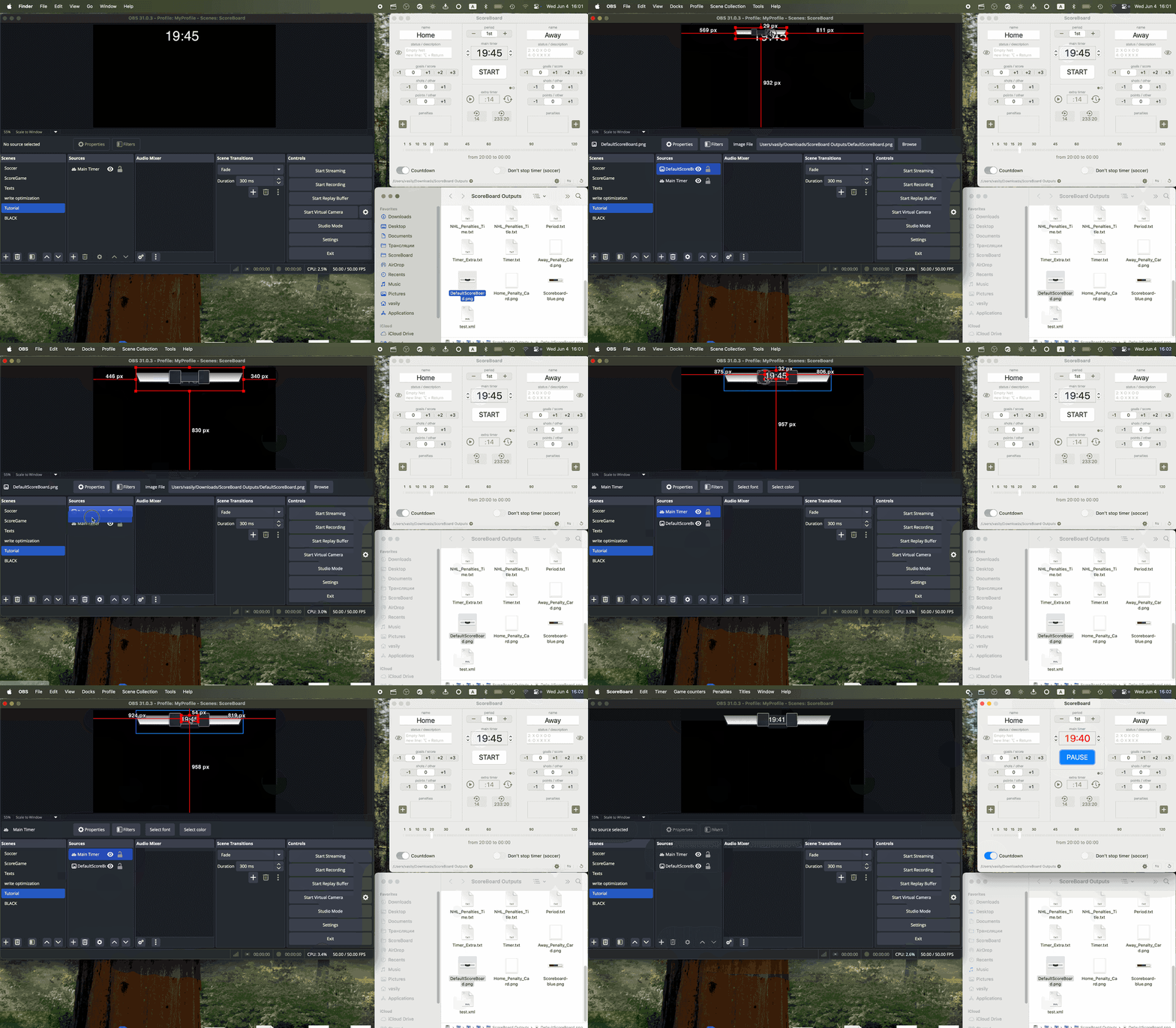
1. Add a Image source
- In the Sources section, click the + button.
- Select Image from the list.
Or simply drag the desired image file from Finder into the OBS window.
2. Name your Image source
- Enter a descriptive name for the source (e.g.,
Background) and press OK button.
3. Select your Image file
- Click the Browse button next to the file path field.
- Navigate to your local img file, select it, and click Open.
- Then click OK to save the source.
4. Place the Image on the Canvas below the text layers
- Drag the image box in the preview area to position it on your scene.
- Resize it as necessary.
- In the list of sources, move the background to the very bottom.
Example of background for scoreboard:

How to display tenths of a second in OBS
OBS by default reads text files approximately once per second. To display tenths correctly, you need to reduce this delay
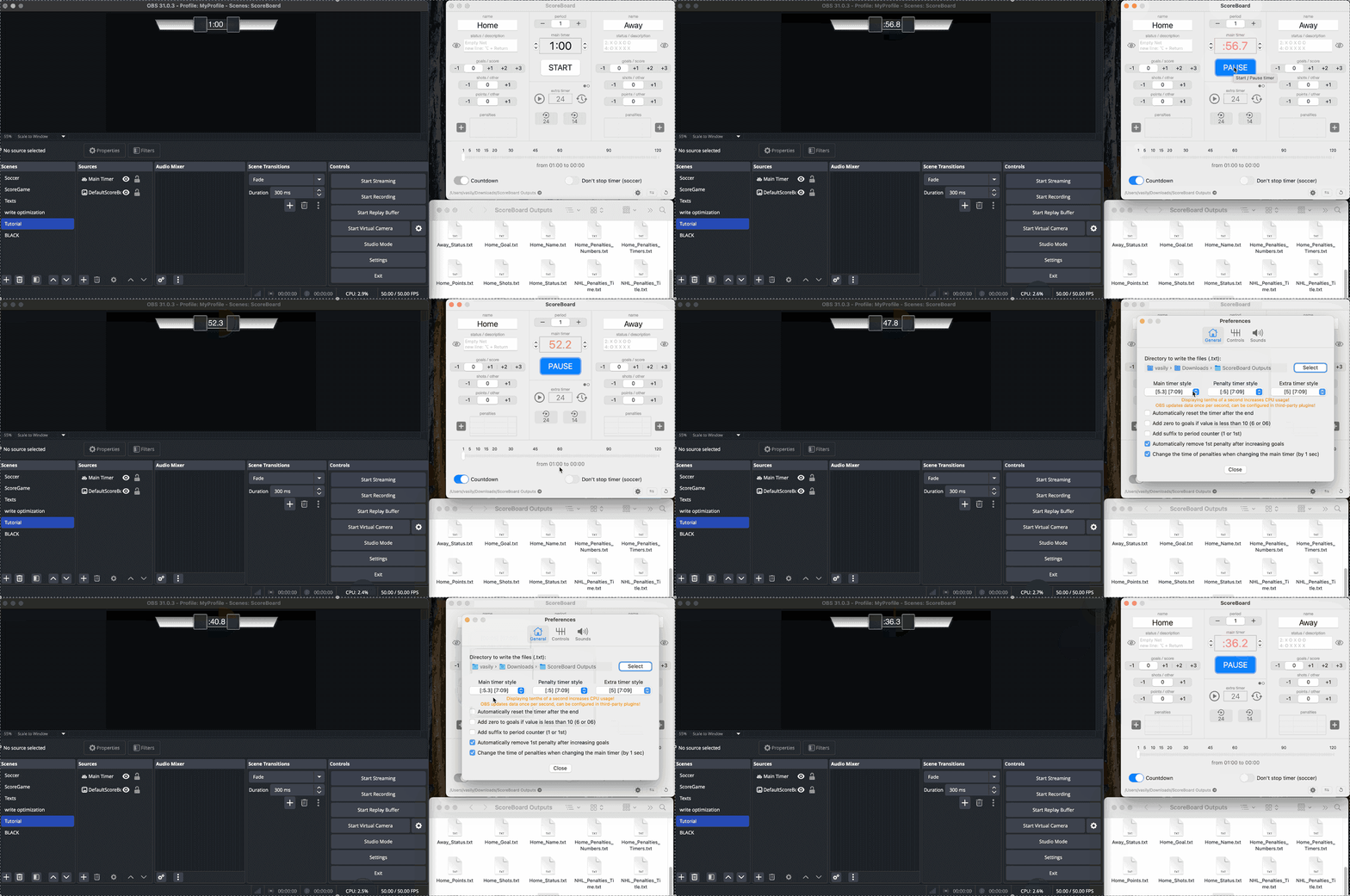
1. Install the plugin Advanced Scene Switcher
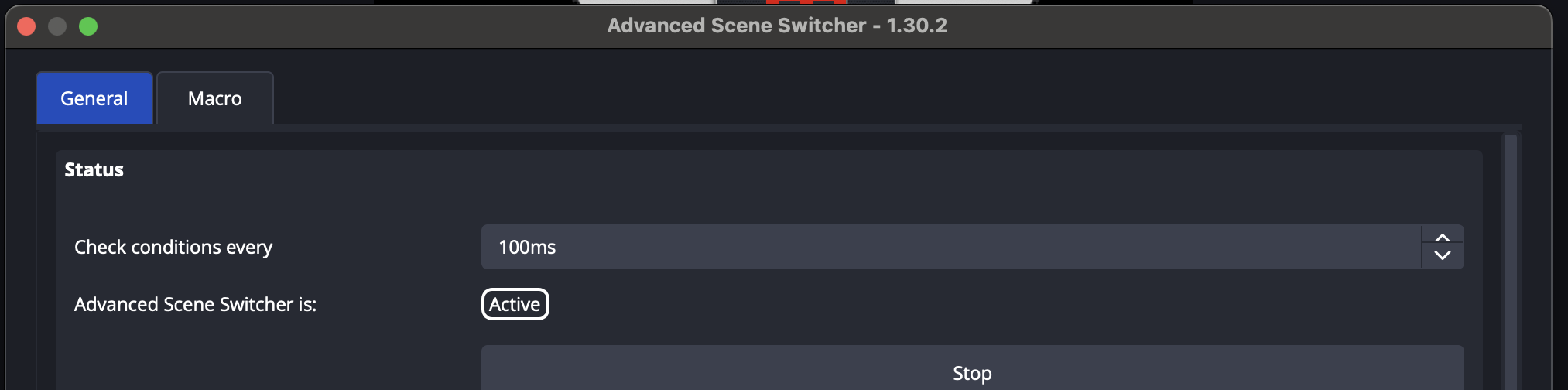
2. Open the plugin
- Main menu in OBS - Tools - Advanced Scene Switcher
- In the General tab set Check conditions every to 100ms
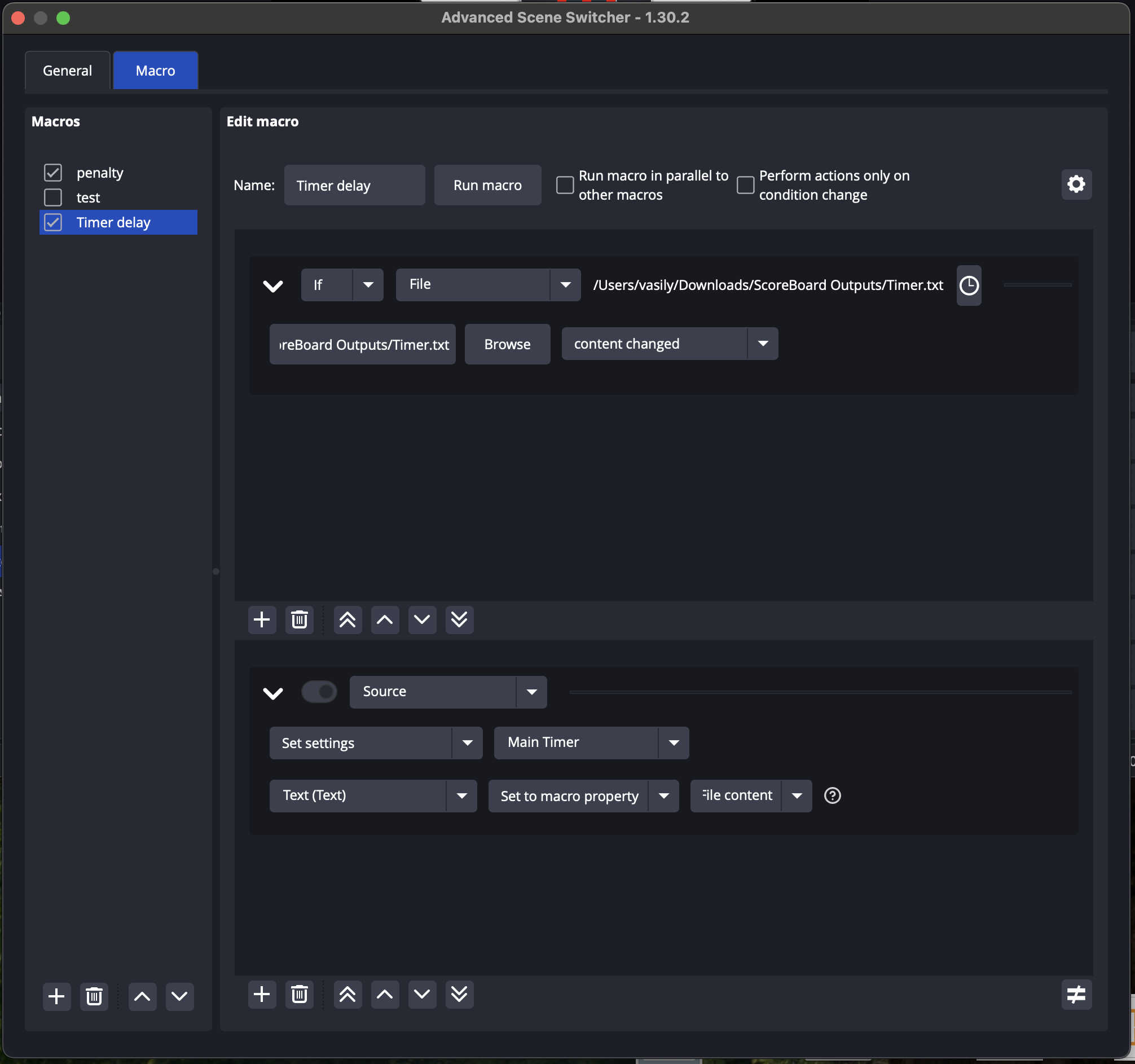
3. Add a new Macro
- Click the + button in the bottom-left corner and rename the macro (e.g., “Timer Delay”)
- Uncheck Perform actions only on condition change
4. Add a new condition
- Click the + button in the conditions section
- Select If
- Choose File
- Click Browse
- Select the file “Timer.txt” (or another file) from the output directory of the ScoreBoard app
- Set the condition to content changed
5. Add a new action
- Click the + button in the actions section
- Select Source
- Choose Set Settings
- Select your FreeType 2 source (e.g., “Main Timer”)
- Set Text(Text)
- Choose Set to macro property
- Select File content
6. Change the text input mode for your timer source
- In OBS, double-click your FreeType 2 source in the Sources list (e.g., “Main Timer”)
- Change Text input mode to Manual
- Enter any placeholder text (e.g., a space) in the Text field
- Click OK

7. Run the main timer in the ScoreBoard app and test
- In ScoreBoard settings, choose a style for the main timer (e.g., [:5.3] or [5.3])
- For testing, set the timer in ScoreBoard to 1 minute (1:00)
- Start the timer and check the result in OBS
How to Show Team Rosters in an OBS Broadcast
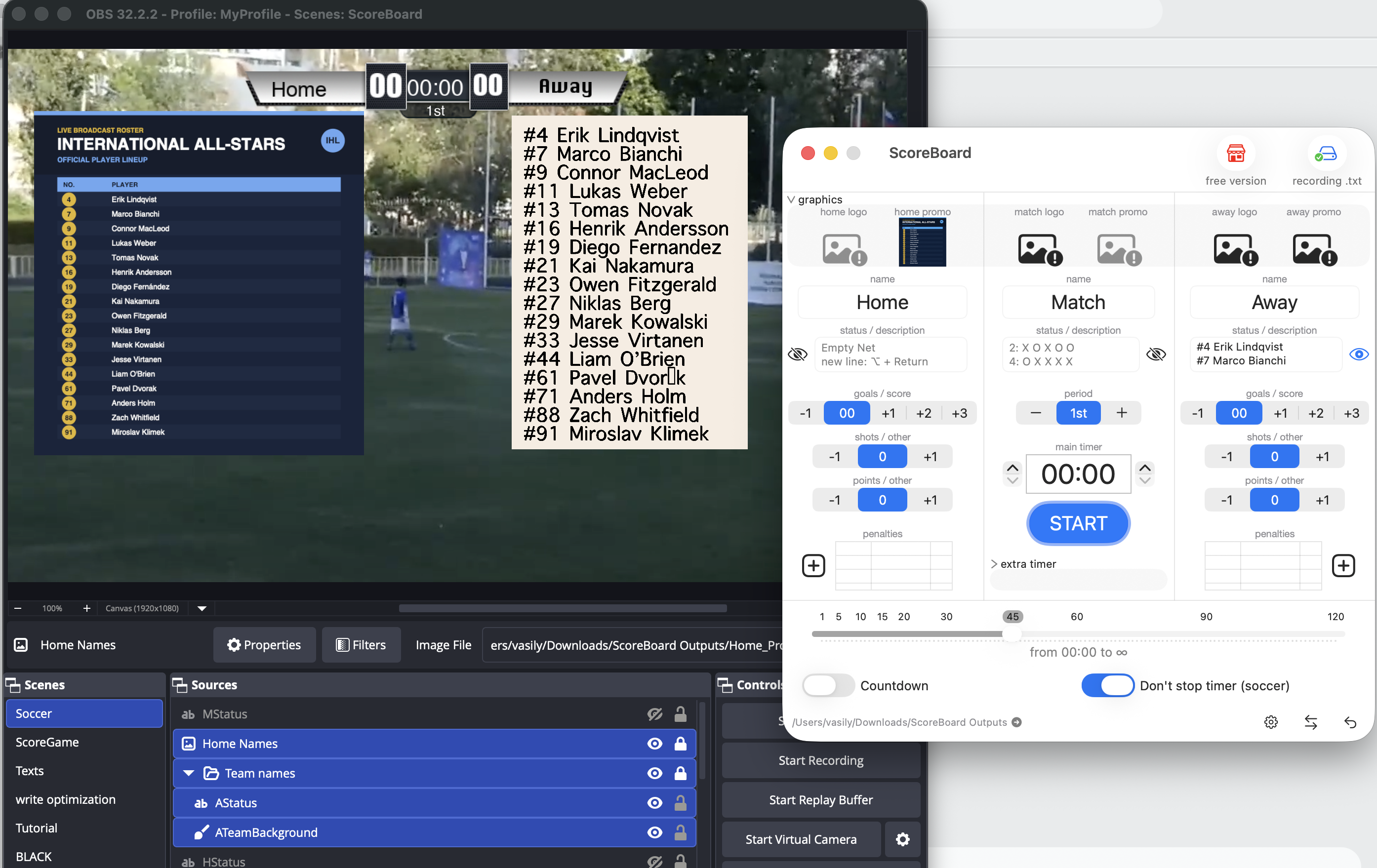
Image Source
-
Create a graphic file (PDF or image) containing the team roster using any software you prefer.
-
Add the graphic file to the home promo or away promo button in Scoreboard and make it visible.
-
Add a Image Source in OBS for the Home_Promo.png or Away_Promo.png files.
Text Source
-
Add a Text Source in OBS for the Home_Status.txt and Away_Status.txt files.
- Add the team roster to the Status field for each team in Scoreboard. For example:
#4 Erik Lindqvist
#7 Marco Bianchi
#9 Connor MacLeod
#11 Lukas Weber
#13 Tomas Novak
#16 Henrik Andersson
#19 Diego Fernandez
#21 Kai Nakamura
#23 Owen Fitzgerald
#27 Niklas Berg
#29 Marek Kowalski
#33 Jesse Virtanen
#44 Liam O’Brien
#61 Pavel Dvorak
#71 Anders Holm
#88 Zach Whitfield
#91 Miroslav Klimek -
Add a background image or a solid-color Color Source.
- Group the text and background layers into a single group so you can control their visibility with one button.
Back to the ScoreBoard for Mac overview or download the free trial.